MakeUseOf

How to Install and Use Proton GE on SteamOS and Linux

Here's how you can install Proton GE—a fork of Valve's Proton—on any Linux distro, including SteamOS.

Readers like you help support MUO. When you make a purchase using links on our site, we may earn an affiliate commission. Read More.

Proton GE is a bleeding-edge version of Steam's Proton. It adds many patches and fixes ahead of main Proton releases. Proton GE even has a counterpart for non-Steam games called Wine GE. Many Linux gamers consider Proton GE and Wine GE to be essential software for Linux gaming.

Proton GE and Wine GE are also easy to install. You can either install them manually or through an app. Linux gamers can use this guide to get Proton GE and Wine GE in a breeze. This tutorial will work for Steam Deck users, as well as any desktop running a Linux distribution.

Manually Installing Proton GE From GitHub
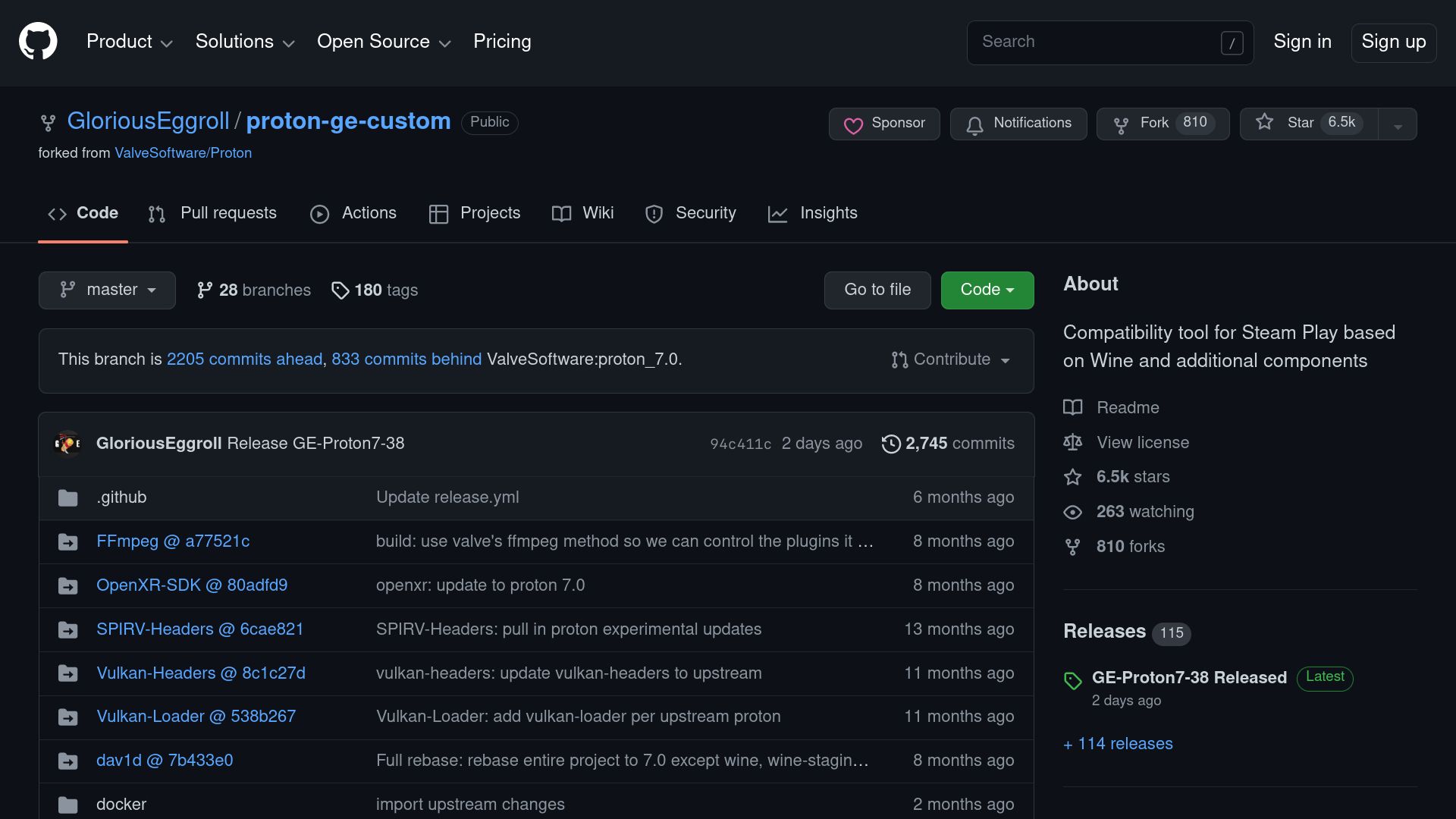
GitHub page of Proton GE

Let's begin with a manual installation of Proton GE, the bleeding-edge compatibility layer for Linux games. This guide mainly works for non-Flatpak releases of Steam.

First, you'll need to head to the Proton GE GitHub page with your web browser. The repository page has a detailed readme on Proton GE, as well as a link to releases of Proton GE.

Click on Releases on the sidebar.
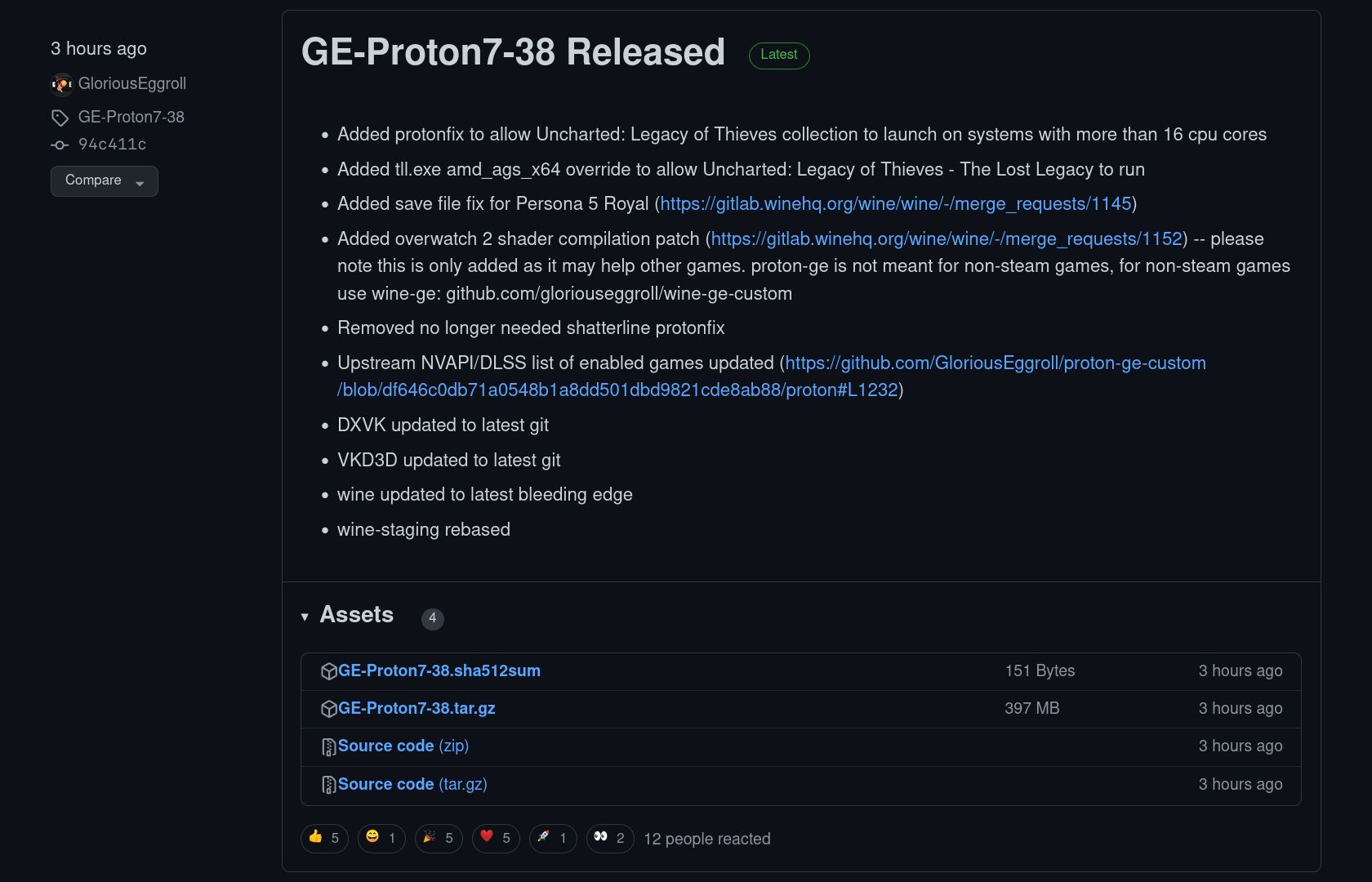
GitHub page of Proton GE 7-38 release

On the repository's Releases page, download the latest version of Proton GE by clicking the GE-Proton[VERSION].tar.gz download link. You are also free to download other releases of Proton GE.
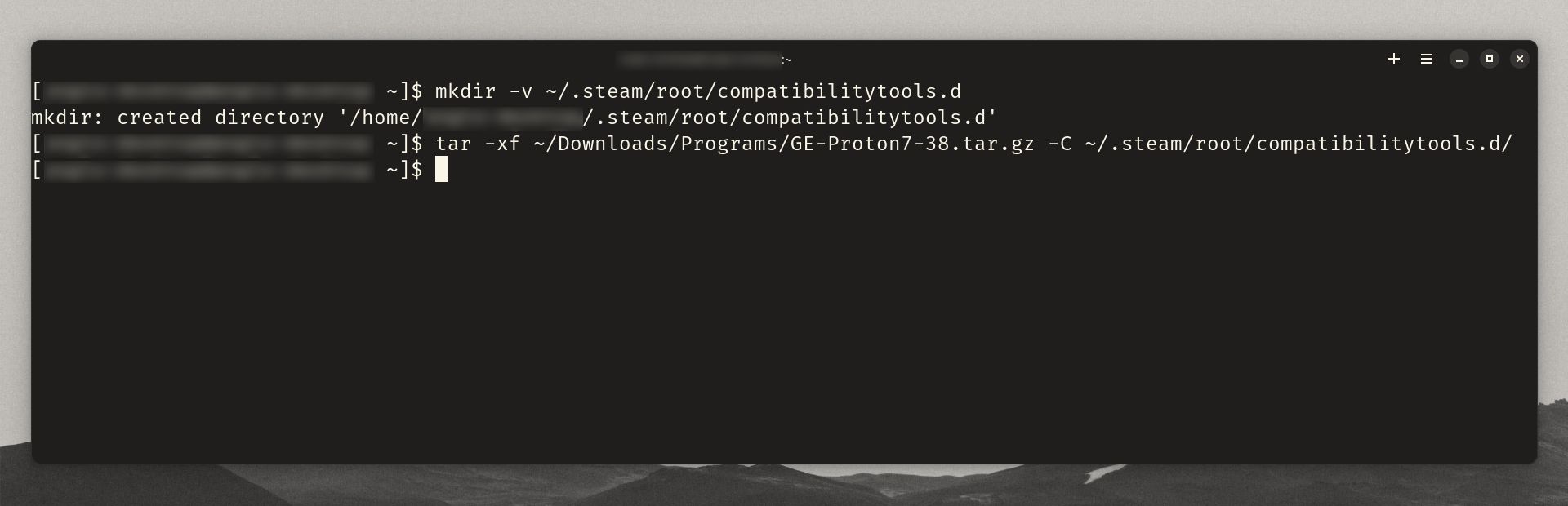
Terminal window showing Proton GE installation process

From here, open your terminal emulator of choice. If it doesn't exist already, create the directory for Proton GE releases:

 mkdir ~/.steam/root/compatibilitytools.d 

Next, navigate to the Proton GE release's download folder. It'll most likely be in the Downloads folder unless you moved it somewhere else.

 cd ~/Downloads 

Finally, extract the downloaded tarball into the directory that you created:

 tar -xf GE-Proton*.tar.gz -C ~/.steam/root/compatibilitytools.d/ 
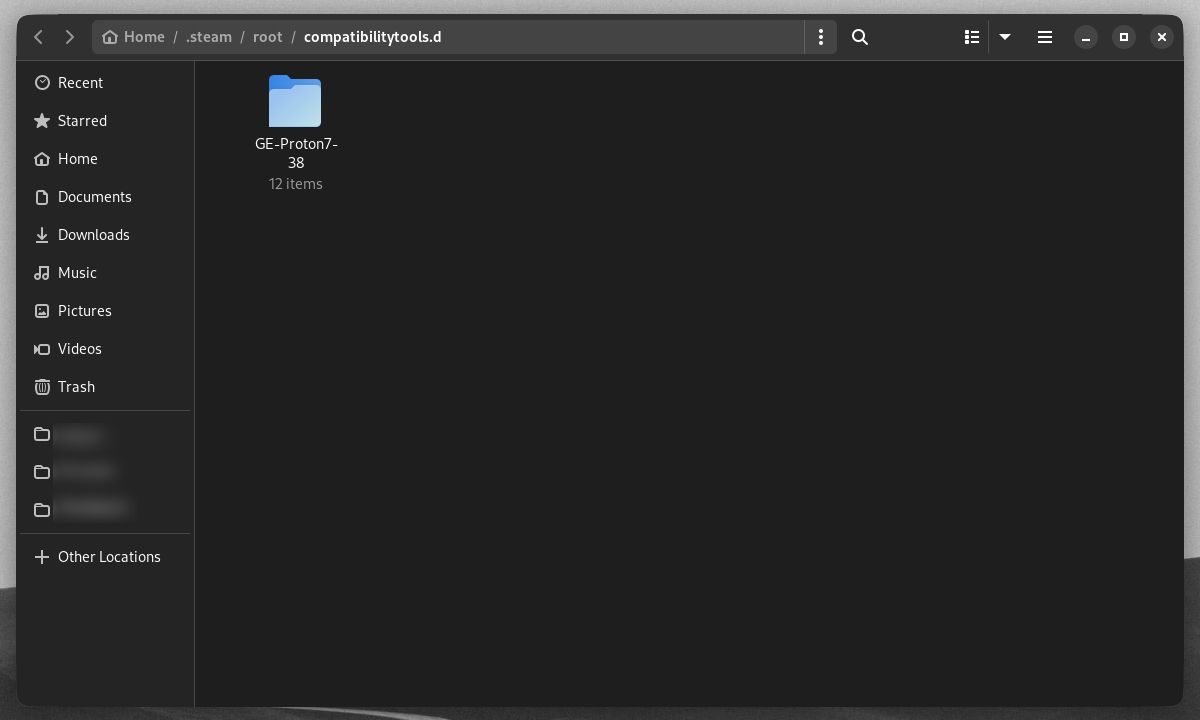
GNOME Files window showing Proton GE release folder in Steam directory

And that's all you need to do! After restarting Steam, Proton GE will show up on the app.

By the way, Arch users can also use the AUR to download Proton GE. Note that the Arch community, not GloriousEggroll, runs the AUR version. You can install the AUR version of Proton GE using Yay.

Installing Proton GE for Steam’s Flatpak Version
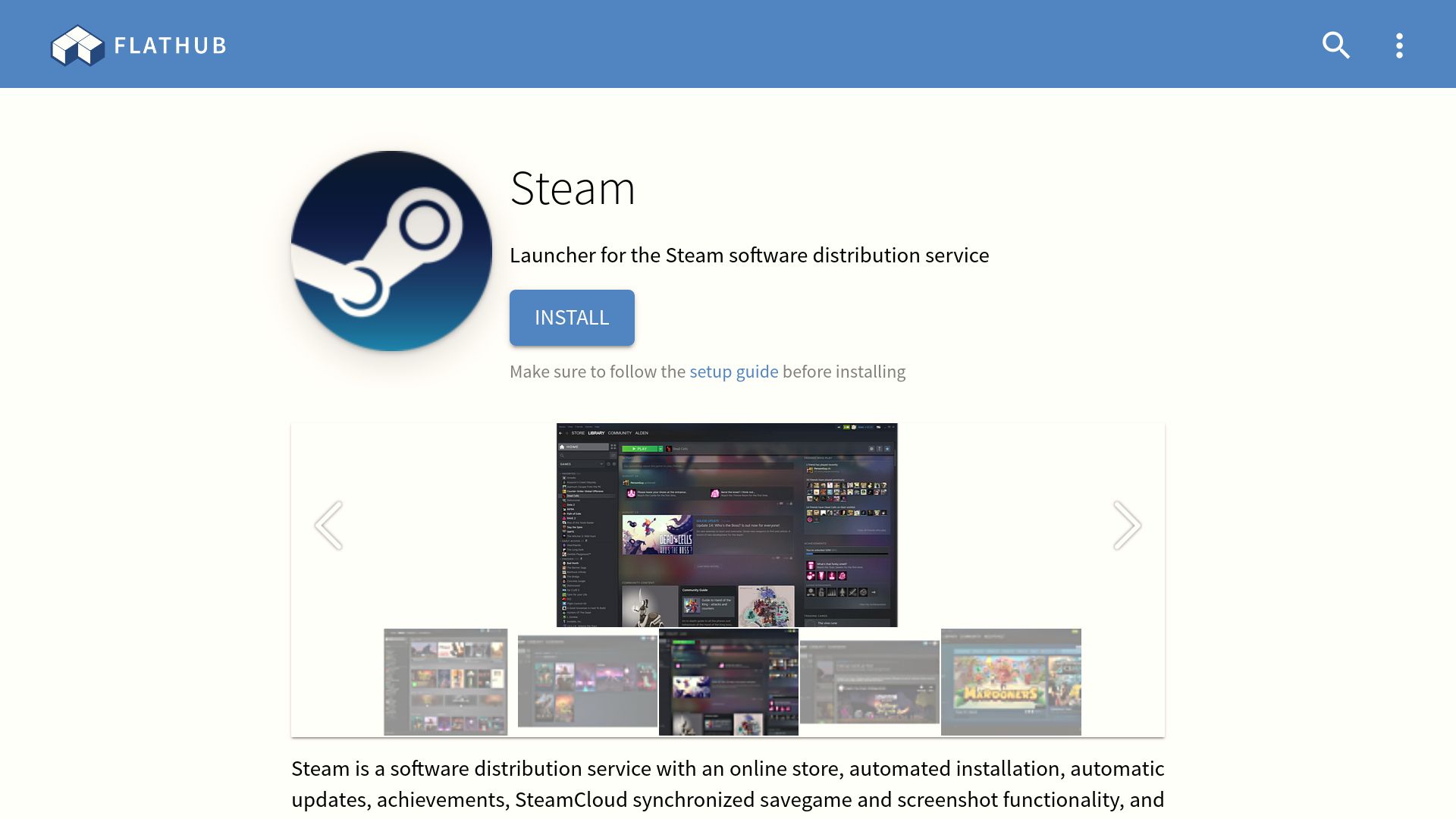
Flathub's download and install page for Steam Flatpak version

Users with the Steam Flatpak will have to tweak their install process a bit. This is because Flatpak installs Steam in a different directory.

If it doesn't exist, create the directory for Proton GE releases:

 mkdir ~/.var/app/com.valvesoftware.Steam/data/Steam/compatibilitytools.d/ 

Next, navigate to your release's download folder.

Finally, extract the downloaded tarball file into the directory that you created:

 tar -xf GE-Proton*.tar.gz -C ~/.var/app/com.valvesoftware.Steam/data/Steam/compatibilitytools.d/ 

You'll have to restart Steam if it's open so that Proton GE can show up on the app.
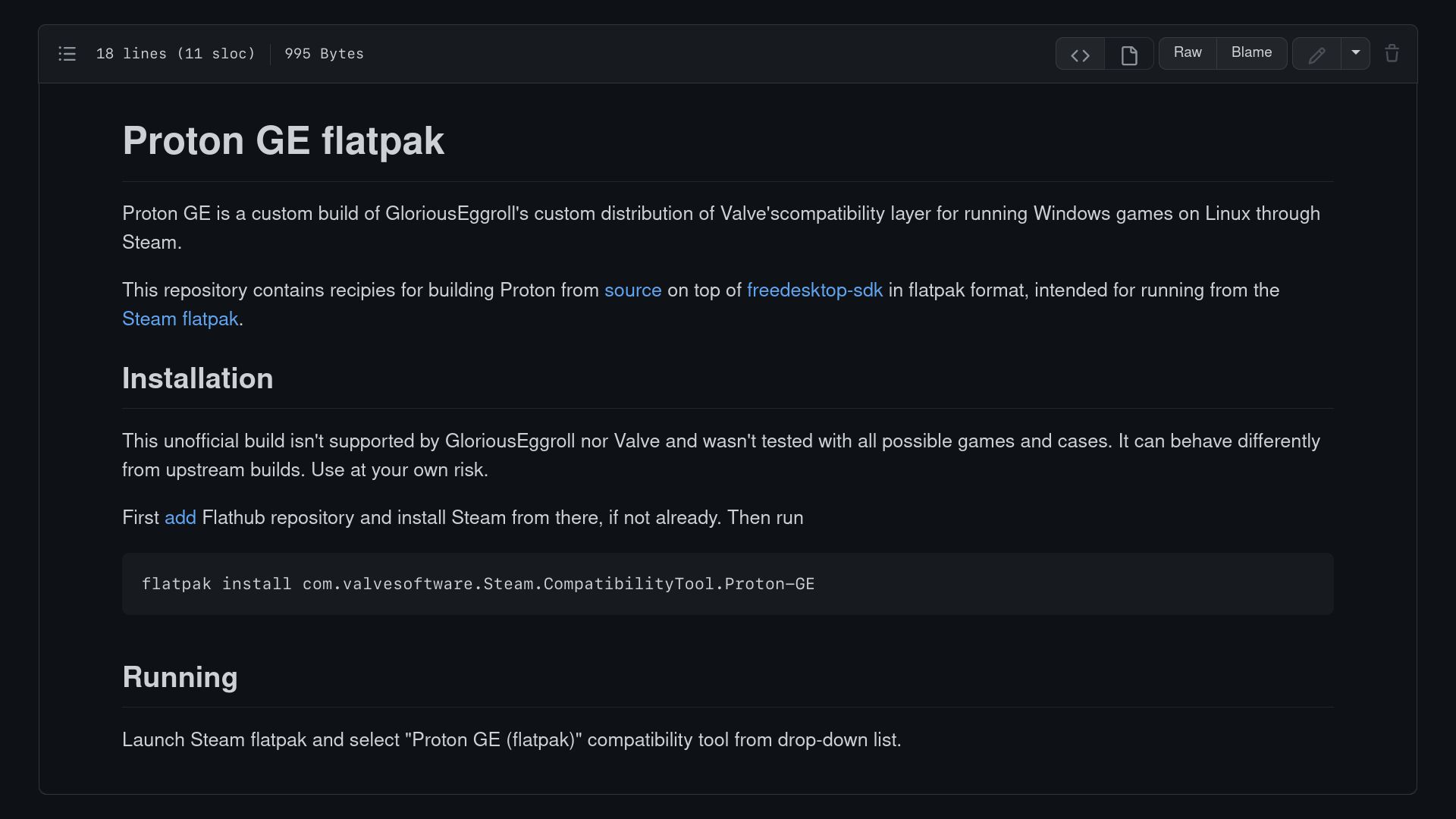
GitHub page of Proton GE Flatpak package's readme

A community-made Flatpak version of Proton GE is also available as an alternative. Again, note that this version is not run by GloriousEggroll.

To install the Flatpak version, run this command:

 flatpak install com.valvesoftware.Steam.CompatibilityTool.Proton-GE 

Restart Steam so that you can enable Proton GE.

Installing Wine GE From Lutris
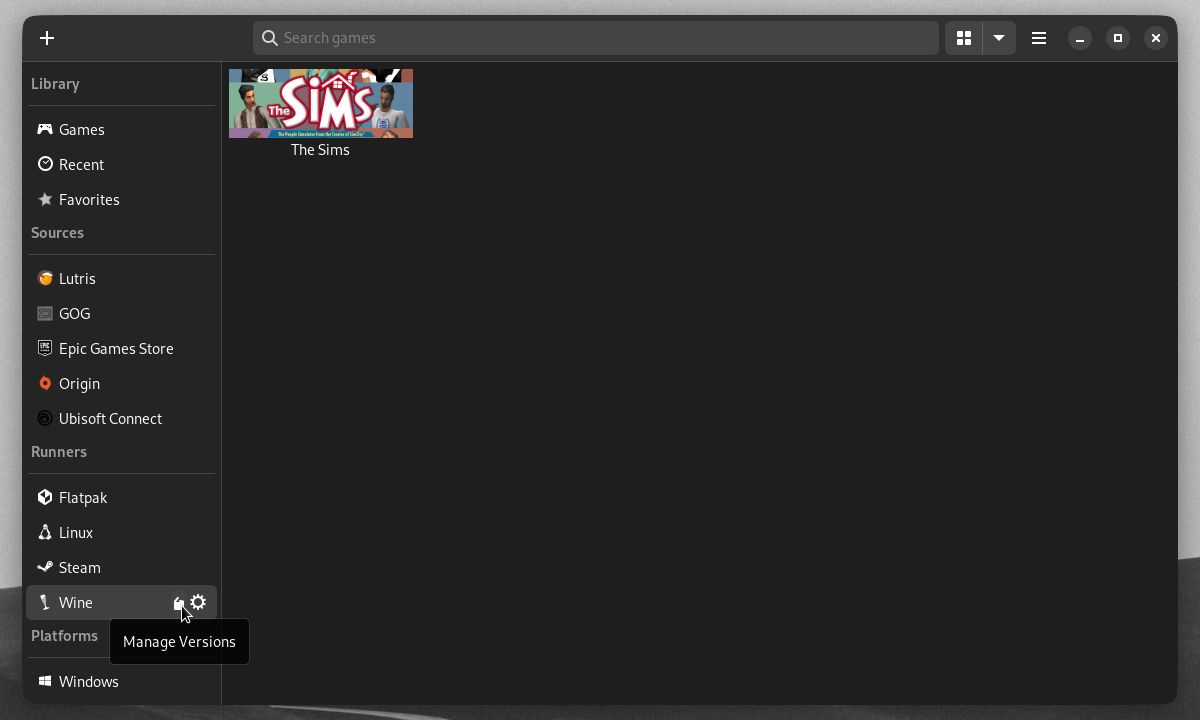
Lutris main window

Wine GE is ideally used from Lutris, a Linux gaming client. Both Linux desktop and Steam Deck users can run Lutris. It's a useful app for playing non-Steam games.

To install Wine GE, you should first have Lutris downloaded and installed.

Download: Lutris (Free
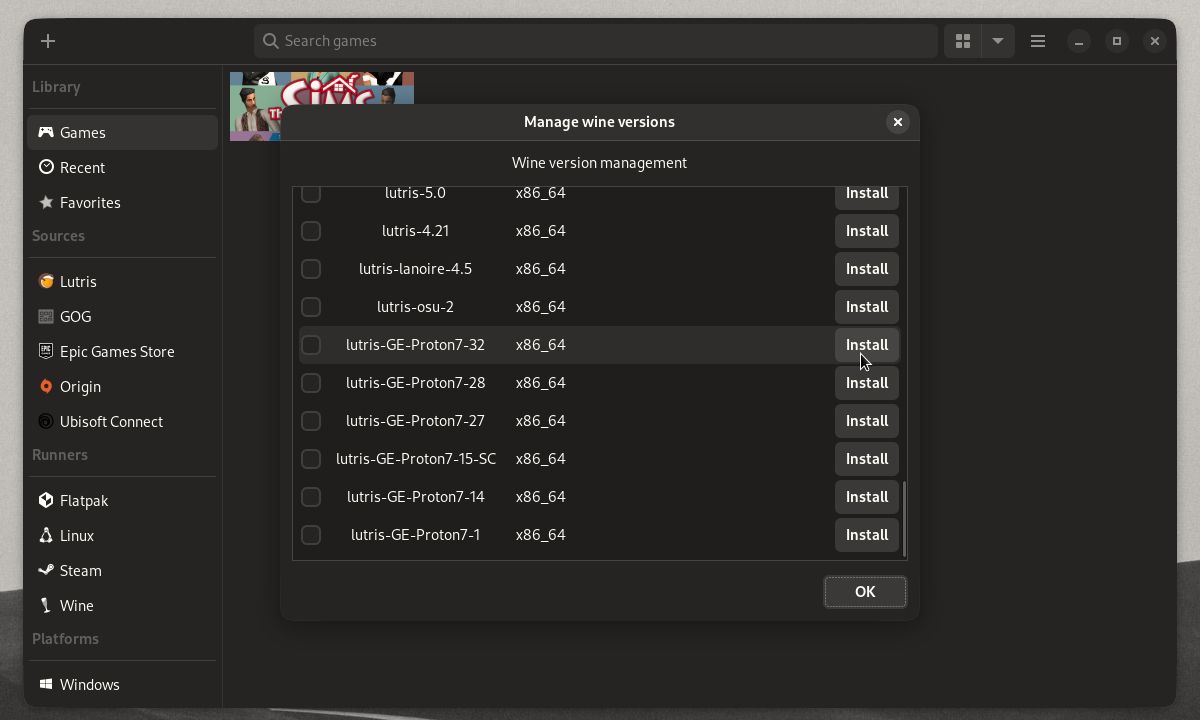
Lutris Wine version management window

Next, hover over the Wine tab, listed under Runners in the sidebar. Click the open box-shaped Manage Versions button that shows up.

A window for managing Wine versions will pop up.

Lutris automatically detects new releases of Wine GE. All you need to do in this window is scroll to find the latest or desired release of Wine GE and click its Install button.

Using ProtonUp-Qt to Install and Update Proton GE and Wine GE
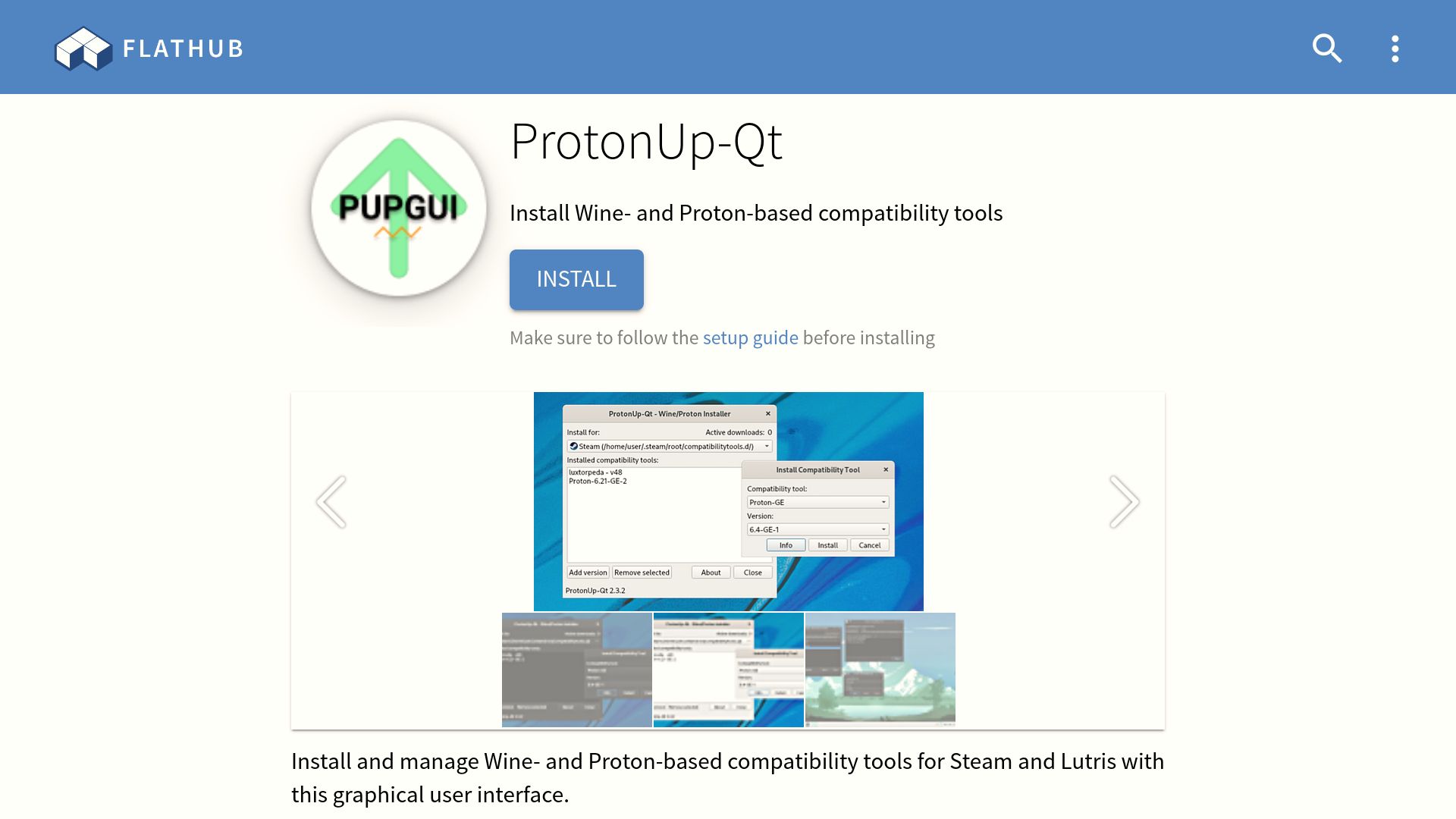
ProtonUp-Qt-Flathub

If you want to avoid manually installing Proton GE altogether, then ProtonUp-Qt is the app for you.

With this app, you can install compatibility tools like Proton GE from a graphical user interface. ProtonUp-Qt works on Flatpak and non-Flatpak versions of Steam and Lutris.

Download: ProtonUp-Qt (Free)
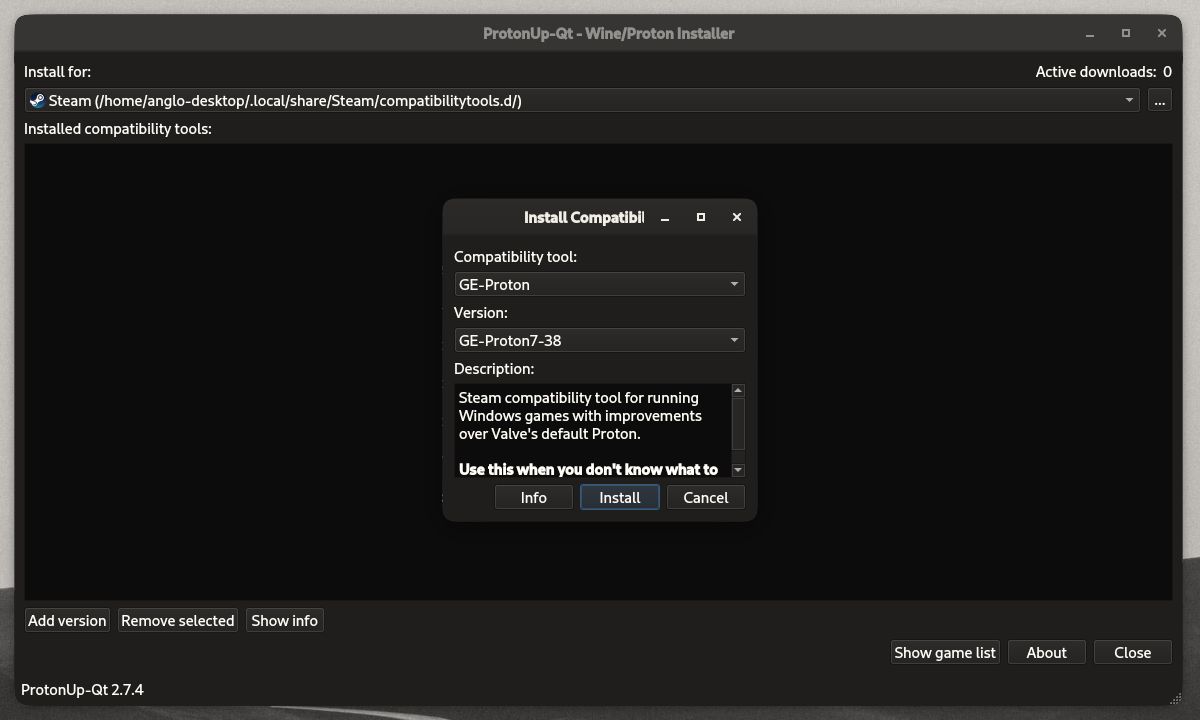
ProtonUp-Qt window with pop up prompt to install Proton GE 7-38

Once you install ProtonUp-Qt, click the Add version button. This will show a pop-up window prompting you to install a compatibility layer.

Select GE-Proton in the dropdown box under Compatibility tool, if it isn't already selected. Next, select your Proton GE version of choice under Version, then hit the Install button.

Restart Steam or Lutris, and Proton GE should be ready for use!

Enabling Proton GE and Wine GE
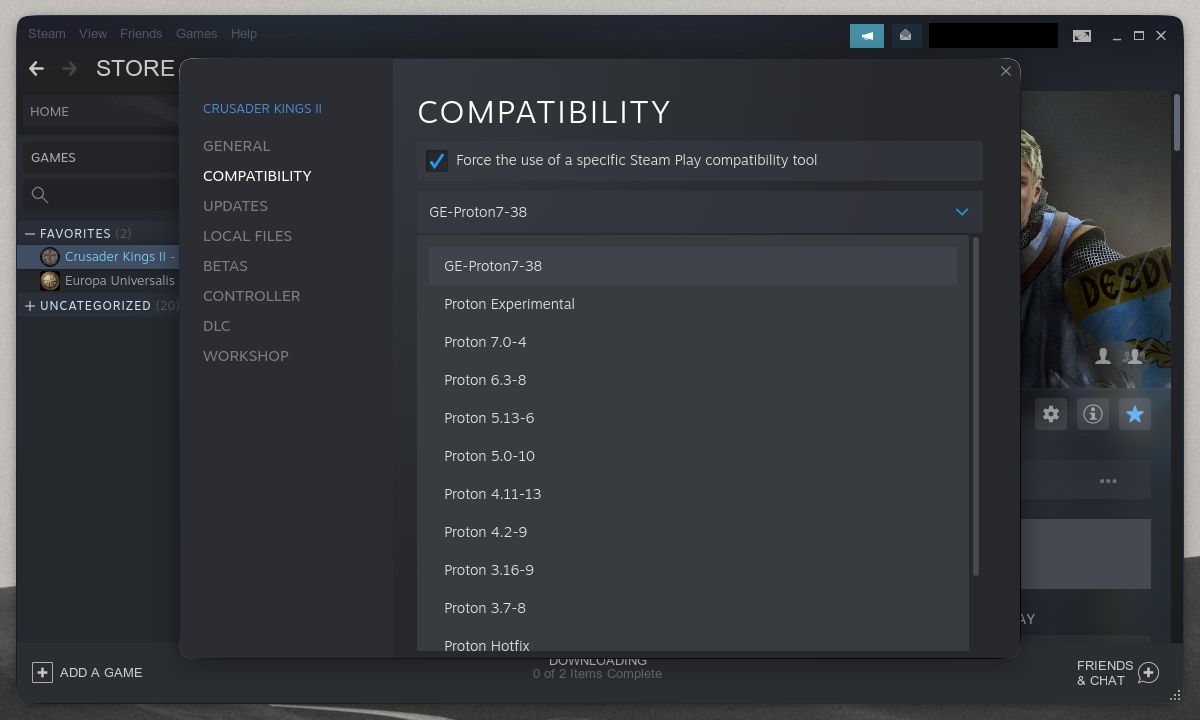
Steam window with game properties pop up showing Proton GE 7-38

To enable Proton GE on your Steam game of choice, open Steam and navigate to your game library.

Next, right-click on the game and click Properties on the context menu that pops up. This will show the Steam game's properties window. Click the Compatibility tab.

Finally, tick the checkbox to Force the use of a specific Steam Play compatibility tool. Click the dropdown box beneath that, then choose the version of Proton GE that you installed.

Exit the Properties window to save your changes. Whenever you open that game, Steam runs it with all the patches and fixes of Proton GE!
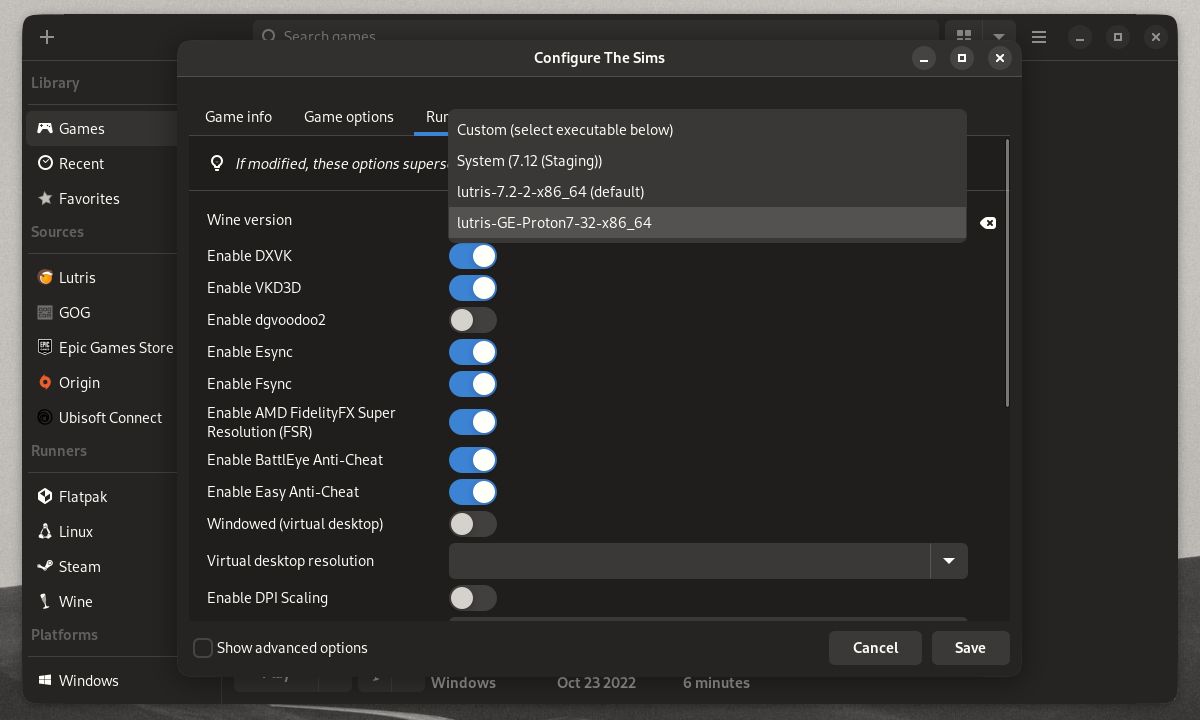
Lutris window with configuration pop up window showing Wine GE 7-32 as an available Wine runner

To enable Wine GE on Lutris, right-click on your game of choice and click Configure on the context menu. A game configuration window will pop up. Click the Runner options tab.

Click the dropdown box next to the Wine version, then choose the version of Wine GE that you installed. Click the Save button to save your changes.

Now, you can run that game with Wine GE enabled!
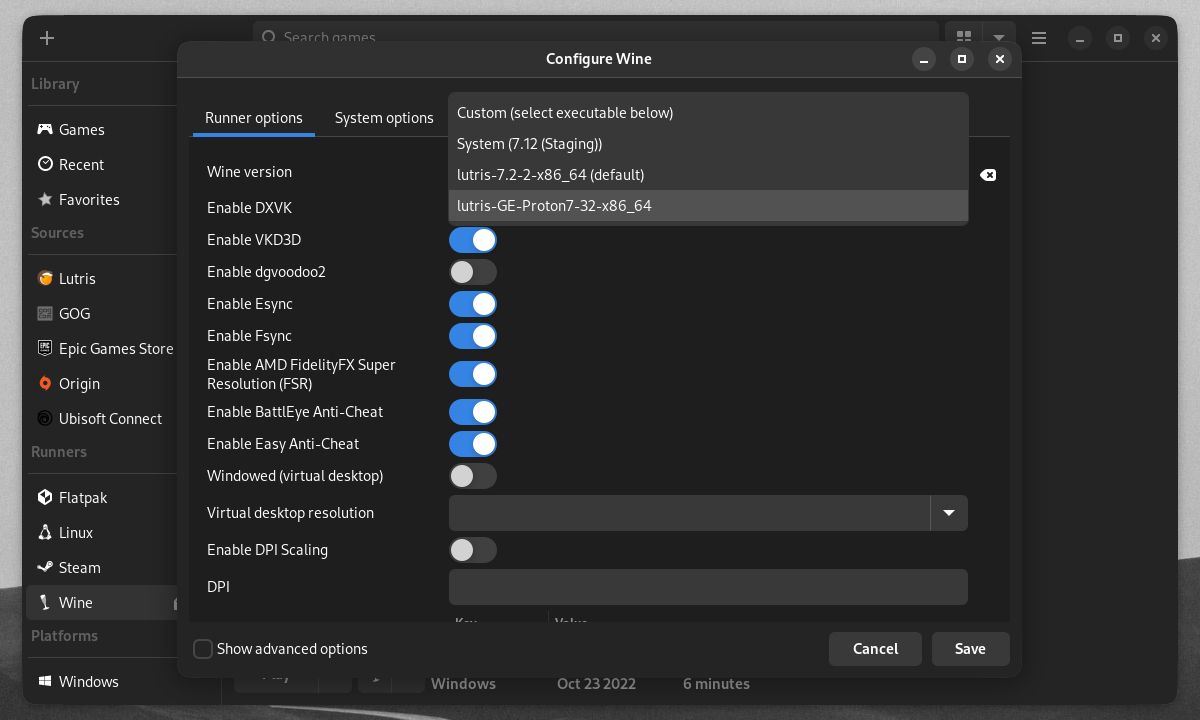
Lutris' Configure Wine window

You can also have Wine GE enabled by default for all games on Lutris. To do this, hover over the Wine tab in the sidebar, then click on the gear-shaped Configure button that shows up.

A Wine configuration window will pop up. Again, click the dropdown box next to the Wine version, then choose the version of Wine GE that you installed.

Finally, click Save to have all your games run on Wine GE!

Play More Games on SteamOS and Linux With Proton GE and Wine GE

With Proton GE and Wine GE, you'll have an even bigger library of games to play on Linux. We've shown that getting them running on your games is easy. From here, you can take gaming on Linux to the next level of ease.

With the right gaming Linux distro, gaming on a Linux desktop can feel better than gaming on Windows.

Nobara Linux: A Bleeding-Edge Gaming Distro for Linux Beginners

Nobara is a Fedora-based distribution that takes Linux gaming to the next level by offering relevant gaming-related configurations out of the box.

Readers like you help support MUO. When you make a purchase using links on our site, we may earn an affiliate commission. Read More.

One of the most often cited roadblocks for new users when it comes to switching over to Linux is the fact that it can be difficult to get many popular games up and running.

If you’re one of those users, we’ve got some great news for you. Nobara Linux is looking to change all of that. Based on the popular leading-edge Linux distro Fedora, Nobara includes many tweaks, add-ons, and customizations designed to take all the headaches and hardships out of gaming on Linux.

What really makes Nobara unique, however, is that the system is designed for the absolute Linux novice.

Nobara Is Not Just Another Fedora Spin

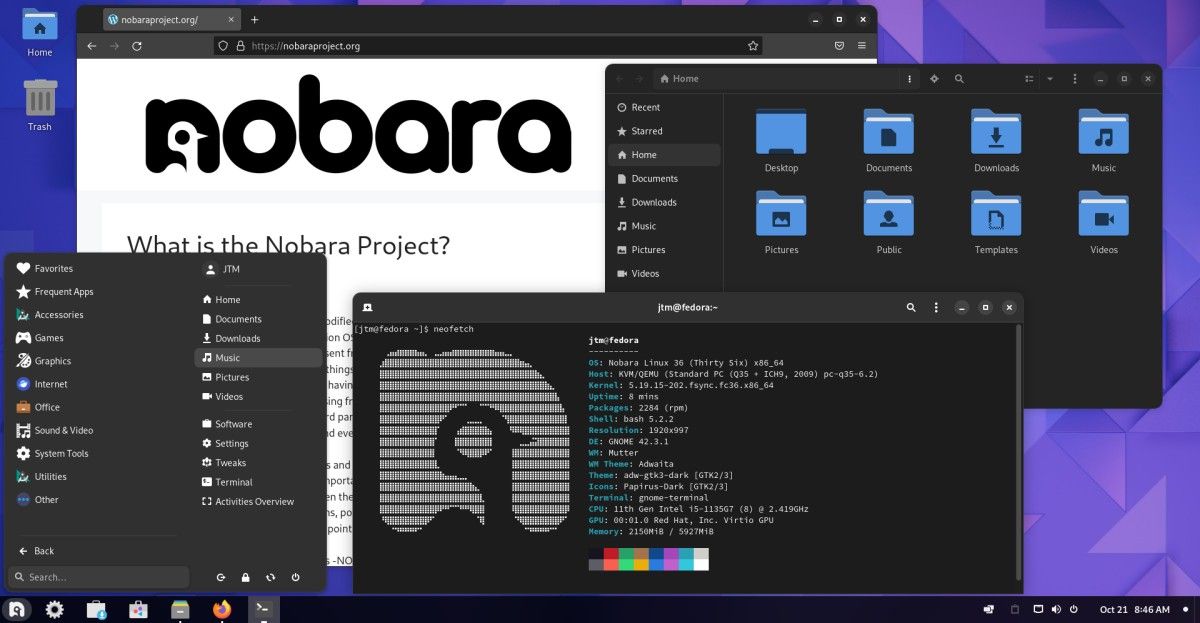
Nobara Desktop

Nobara is the brainchild of Red Hat software maintenance engineer Thomas Crider, also known under the pseudonym GloriousEggroll. Thomas is known for his work on several other projects aimed at improving the gaming experience on Linux.

Don’t be fooled, though. Nobara is much more than just another Fedora spin. Although there is a lot going on outside of the user's view, in the end, the official Fedora spins all provide the same basic underlying system with just cosmetic surface changes.

Nobara goes far beyond just changing the look of a standard Fedora Workstation installation. This distribution aspires to be something different. Nobara includes its own package manager and software repositories on top of the standard Fedora offering.

Basic system options and packages are pulled out, rearranged, reconfigured, and put back together with a specific purpose in mind. This is not a general-use Linux distribution. It is a specialized, highly-targeted operating system designed with hardcore gamers in mind.

Out of the box, everything the Linux gamer could need is either installed or available to install with just one click. Nobara takes the rock-solid, leading-edge technology of Fedora into new realms of gaming glory.

Installation is quick and easy. All you'll need to do is download the installation ISO image of your choice from the official Nobara site and create a bootable USB or DVD from it. Once created, just boot from the image, select Install when you get to the desktop, and answer a few quick questions. From there, all you have to do is sit back, relax, and wait for the process to finish.

Download: Nobara Linux

Choose From the Three Flavors of Nobara Linux

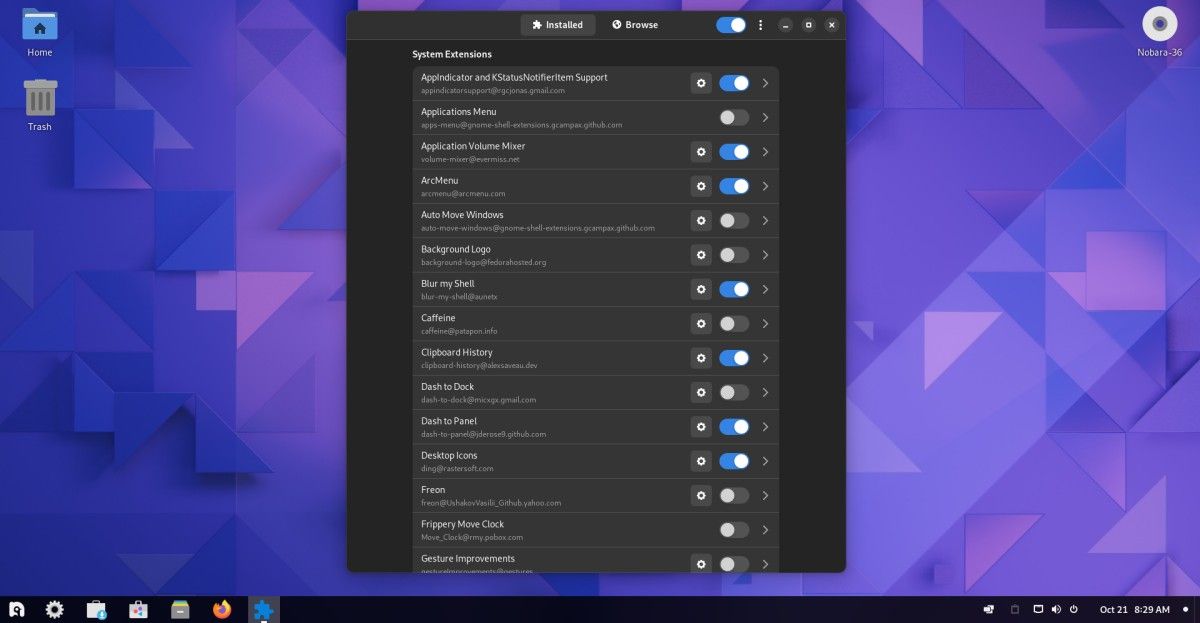
The official distribution image—recommended for new Linux users—implements a heavily modified version of the GNOME desktop environment.

There are more than 20 different GNOME tweaks and extensions installed to help simplify the experience and make the system more comfortable for users coming directly from Windows. Even the newest Linux users should be able to navigate the system without a problem.

Nobara Installed GNOME Extensions

There is also a more standard GNOME version that may be more attractive to experienced Linux users or those who are looking for something that more definitively stands apart from Windows. The other alternative is a Plasma variation that utilizes the KDE Plasma desktop environment. If you’re looking for the ultimate in customizability on your desktop, Plasma is definitely for you.

As the author points out on the Nobara site, all three variations have the same base packages and software repositories. The only difference between the three is the desktop environment. Everything under the hood remains the same. So, you can be confident that you’ll get the same great gaming experience no matter which version you choose.

Aside from the obvious customizations made to the desktop environments, there are also many low-level configuration tweaks and changes to help improve the base system performance when it comes to gaming. Among those are special kernel patches to help optimize everything from video playback to hardware acceleration and dedicated graphics processors.

Running Nobara Linux for the First Time

To make sure software installation and updates go smoothly, the system package manager comes configured to find the fastest mirror for downloads automatically. It’s also preset to download more package files simultaneously, which helps to speed up installations and updates considerably.

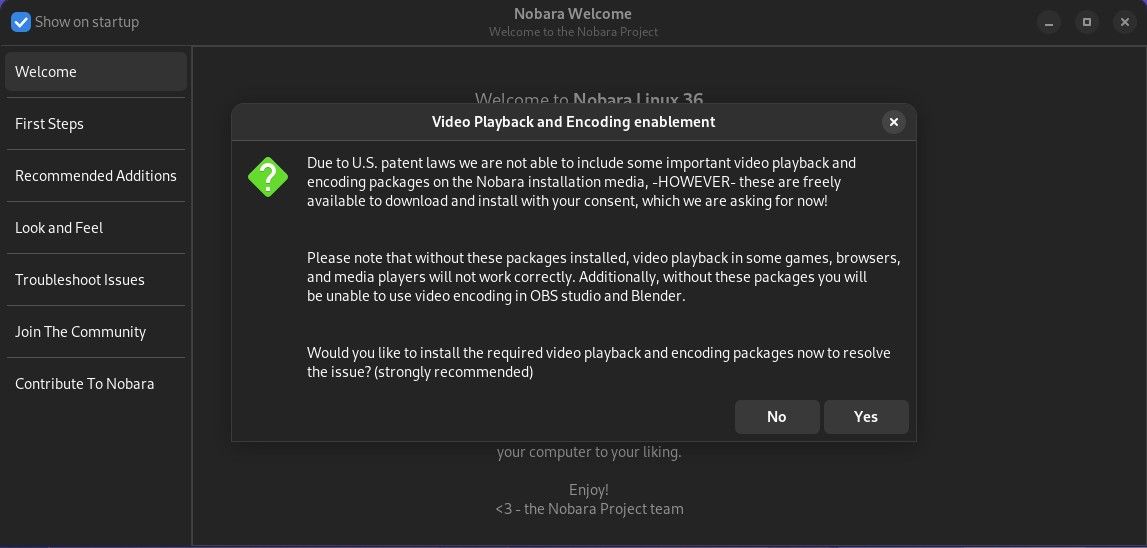
Nobara Install Codecs

The first time you boot up your new Nobara system, it will ask you if you’d like to install extra video and audio codecs. Because of patents and other regulations, these codecs can't be distributed as part of another software package.

You are, however, allowed to download and install them yourself. So, for maximum compatibility, you’re going to want to go ahead and let the system install them.

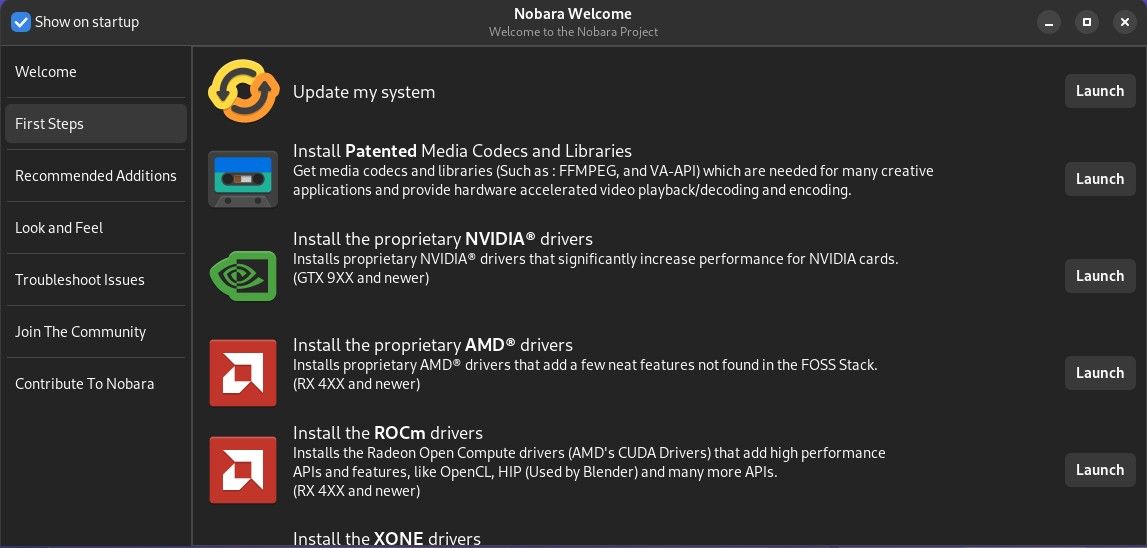
Nobara Welcome App

After installing the extra codecs, you’ll see the Nobara Welcome app which gives you the opportunity to update the system to all the latest package versions, install extra video drivers, make adjustments to the look and feel of the system, and more.

It will only take a few minutes to browse through the application. After going through it, you should have a pretty good idea of what you can do with your new Nobara installation.

Aside from the most obvious options and additions, there are also many finely tuned configuration changes such as:

  • The WINE application compatibility layer, which allows you to run Windows programs on Linux, is installed by default
  • The underlying windowing system and window managers are set up for better performance with high-end graphics
  • The system automatically detects and installs the video drivers for NVIDIA and AMD GPUs
  • Extra video codecs are installed by default to allow for more video playback options
  • Blender and OBS Studio are pre-installed to make it easier to record and broadcast your gaming sessions
  • Proton and Lutris, two more applications that help with running Windows games, are installed out of the box
  • Discord is pre-installed so you can jump right into your favorite gaming channels
  • Flatpak support and repositories are fully set up

And there are many more low-level, highly-technical settings and software packages included to make sure that no matter what type of system you're installing Nobara on, you will get the best performance possible when playing your favorite games.

It’s Time for Some Glorious Linux Gaming

On top of all this gaming goodness, the entire user experience is designed to be easy to follow, intuitive, and painless.

If you can use Windows, you’ll be able to use Nobara without any problems. Menus, taskbars, and all the familiar desktop elements you are accustomed to will be right where you expect them to be. No matter what your level of Linux knowledge is, you’ll be able to jump right in and get your game on within minutes.

Of course, once you have your shiny new Linux gaming station set up, the next step is to start installing some great games!